How to Stream from OBS to StreamIngest Using SRT
Replace RTMP with SRT in OBS Studio to send a more reliable stream to StreamIngest. This guide covers the exact settings, bitrate rules, and what to check if the connection fails.
OBS defaults to RTMP, and RTMP works fine on a rock-solid wired connection. The problem shows up the moment your network has any variability: competing downloads, WiFi interference, or a brief carrier hiccup. RTMP runs over TCP and reacts to packet loss by stalling the entire pipe — which Twitch and YouTube see as a sudden bitrate collapse.
SRT handles the same packet loss without stalling. It retransmits the specific lost packet while everything else keeps moving, so a brief hiccup becomes a recovered frame rather than a frozen stream. Switching OBS to SRT output takes about two minutes and pays off every time your connection isn't perfect.
Why SRT is more reliable than RTMP in OBS
RTMP runs over TCP, which guarantees delivery by retransmitting lost packets — but TCP does this by holding back everything behind the lost packet until it arrives. On a spotty connection, that means audio and video stall together while TCP waits. The ingest server sees the bitrate crater and may close the connection.
SRT uses UDP with its own selective retransmission layer. A lost packet triggers a retransmit request only for that packet — the packets behind it continue uninterrupted. The encoder keeps sending, the server keeps receiving, and only the one lost frame is recovered in the background.
- RTMP packet loss → TCP stalls the pipe → ingest server sees 0 kbps → stream drops.
- SRT packet loss → only that packet is retransmitted → stream continues at full bitrate.
- SRT also encrypts the stream in transit, which RTMP does not do by default.
Find your SRT endpoint in StreamIngest
Log in to your StreamIngest account and open Settings. Under the Ingest section, you will see your SRT endpoint URL and your Stream ID listed separately. Copy both before you open OBS — you will paste each into its own field.
Your SRT URL will look like srt://ingest.streamingest.com:PORT. Your Stream ID is a unique string that tells the StreamIngest server which account is sending the stream. Treat the Stream ID like a password — anyone who has it can push video to your channel.
- The SRT endpoint and the SRTLA endpoint in your dashboard are different URLs. For OBS, use the SRT one.
- If you rotate your Stream ID from the StreamIngest dashboard, update OBS immediately — the old ID stops working instantly.
Configure OBS to output via SRT
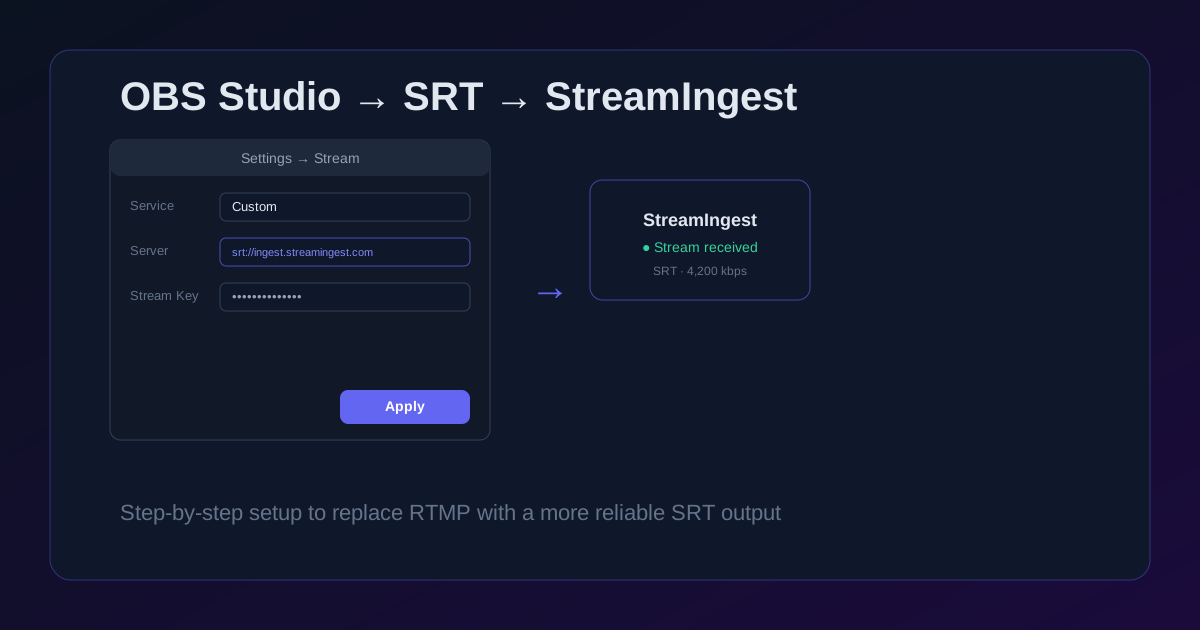
Open OBS and go to Settings → Stream. Set Service to Custom. In the Server field, paste your StreamIngest SRT URL including the port number. In the Stream Key field, paste your StreamIngest Stream ID. Click Apply.
For better performance, also open Settings → Output and switch to Advanced output mode. On the Streaming tab, set the encoder to your GPU hardware encoder if one is available: NVENC on Nvidia, AMF on AMD, or VideoToolbox on Mac. Hardware encoders run the video compression off the CPU, which reduces heat and leaves OBS headroom for scene transitions and effects.
- The Stream Key field in OBS maps to the Stream ID field in StreamIngest — different labels, same value.
- If OBS shows a Reconnecting message on start, the most likely cause is a wrong port in the SRT URL.
- Simple output mode works too — switch to Advanced only if you want encoder-specific controls.
Set a bitrate SRT can actually sustain
SRT does not increase your available bandwidth — it uses what you have more efficiently. You still need to set a bitrate your upload can deliver consistently. Run a speed test on the same network you'll stream from, take the upload result, and target 60–70% of that as your maximum encoding bitrate.
For most home connections, 720p60 at 4–6 Mbps or 1080p60 at 6–9 Mbps with NVENC produces a sharp image without pushing the link. Start at the lower end and step up only after a stable 10-minute test with OBS's Stats panel open.
- Check OBS Stats → Dropped Frames during the test. It should stay at or very near zero.
- If dropped frames climb above 1%, lower your bitrate by 1 Mbps and retest.
- 1080p60 at 8 Mbps with NVENC looks better than 1080p60 at 8 Mbps with x264 on most hardware — use the hardware encoder.
Pre-Flight Checklist
- Copy your StreamIngest SRT URL and Stream ID from Settings before opening OBS.
- Set Service to Custom in OBS Settings → Stream before pasting anything.
- Switch to a hardware encoder (NVENC / AMF / VideoToolbox) in Advanced output mode.
- Run a 5-minute private stream test and keep OBS Stats open to check dropped frames.
- If the SRT URL includes a port, include it exactly — a missing port is the most common connection failure.
Common Issues
OBS shows Reconnecting immediately after starting the stream
The SRT URL is likely malformed — check that it starts with srt://, includes the port number after a colon, and has no trailing spaces. Also confirm the Stream Key field contains only your StreamIngest Stream ID, not any part of the URL.
Stream connects but OBS shows high dropped frames
Dropped frames in OBS usually mean the encoder cannot keep up or the network is saturated. Lower your output bitrate by 1–2 Mbps and retest. If the drops stop, your connection was the limit. If they continue, switch to a hardware encoder to reduce CPU load.
Video at the destination is choppy despite a stable OBS connection
Your SRT latency setting may be too low for the round-trip time to the StreamIngest server. In OBS Settings → Output → Advanced → Streaming, increase the SRT latency to 2–4× your measured ping to the ingest server.
FAQ
Not natively. OBS outputs plain SRT over a single connection. For bonded multi-connection streaming, you need an encoder app that supports SRTLA output — Moblin and IRL Pro both do. StreamIngest accepts both plain SRT and SRTLA, so you can use either depending on your encoder.
Either works on a rock-solid wired connection. SRT is still worth using because it encrypts your stream in transit and gives you a buffer if there is ever brief congestion on your ISP's backbone. The two-minute setup cost is worth the headroom.
Yes. OBS on a laptop works well for event commentary, a second camera rig, or back-of-venue setups. For phone-based IRL walking streams, Moblin or IRL Pro are more power-efficient choices since they are designed for sustained mobile encoding.
If you have uploaded a fallback video in StreamIngest Settings, it plays automatically the moment OBS disconnects — your viewers see a BRB screen instead of the platform's offline message. When OBS reconnects and the signal stabilizes, StreamIngest switches back to your live feed.
OBS is configured. Now point it at an ingest that won't drop it.
StreamIngest gives you SRT and SRTLA endpoints, automatic fallback video, and real-time connection stats — all in one dashboard. Your stream stays live even when the connection hiccups.