Moblin IRL Streaming Setup Guide (SRT(LA) Step-by-Step)
Configure Moblin for IRL streaming with SRT(LA): create a custom stream, add your SRTLA URL and stream ID, pick a safe profile, and run a pre-flight check before you go live.
- 1. Why SRT(LA) is a strong fit for IRL on cellular
- 2. Step 1 — Open Settings and the Streams list
- 3. Step 2 — Create a stream and select Custom
- 4. Step 3 — Set protocol to SRT(LA) and enter URL and stream ID
- 5. Step 4 — Match resolution, frame rate, and bitrate to the network
- 6. Step 5 — Go live, watch the first 60 seconds, then commit
IRL streaming from a phone is hard mode: you walk through dead zones, ride elevators, and fight RF congestion in crowds. The encoder app and protocol you choose are what stand between a smooth broadcast and a slideshow of buffer screens.
Moblin is a popular choice for iPhone-based streaming. When your ingest supports it, SRT (optionally SRT with listener mode in Moblin) helps on jittery mobile uplinks. Many hosts label this path as SRT(LA) when your subscription includes an SRTLA-style endpoint. This guide walks you from zero to live using a Custom stream and that protocol, matching the flow you will see in provider tutorials.
Before you start, have your SRTLA URL (or the exact ingest string your host gives you) and your stream or channel ID on hand from the provider’s dashboard, such as a “My Services” or cloud endpoint page. You will paste them into Moblin exactly — no extra spaces, no missing slashes.
Why SRT(LA) is a strong fit for IRL on cellular
Unstable upload is the default outside a studio. Protocols that recover from loss and keep latency predictable tend to do better on LTE and 5G than plain RTMP over TCP alone. SRT (and SRT-based ingest chains) is built for that class of network behavior.
Your host may expose the ingest as a single URL, sometimes described as SRT(LA) for compatibility with SRTLA-aware infrastructure. The UI label in Moblin may read SRT(LA); what matters is you match what your host documents and the format they expect in the app.
- Lower tolerance for one-way packet loss and jitter is common on IRL; recovery matters more than in a wired home setup.
- You still need a realistic bitrate. No protocol saves a stream that tries to send 6 Mbps on a 2 Mbps upload.
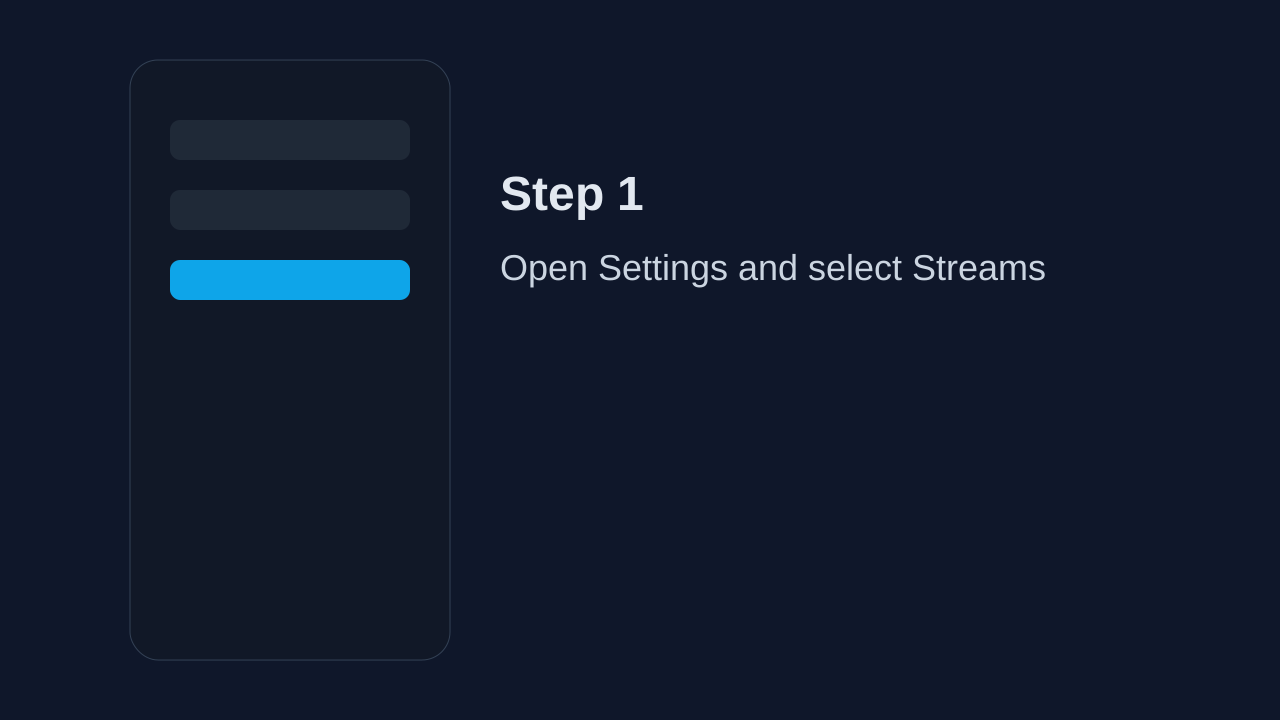
Step 1 — Open Settings and the Streams list
On your device, open Moblin and go to Settings, then open Streams. This screen lists every destination you can send video to. Each stream is one destination configuration (for example, one SRT(LA) ingest for your IRL show).
If you already have a stream for another platform, add a new one for this workflow so you can roll back without breaking other presets.
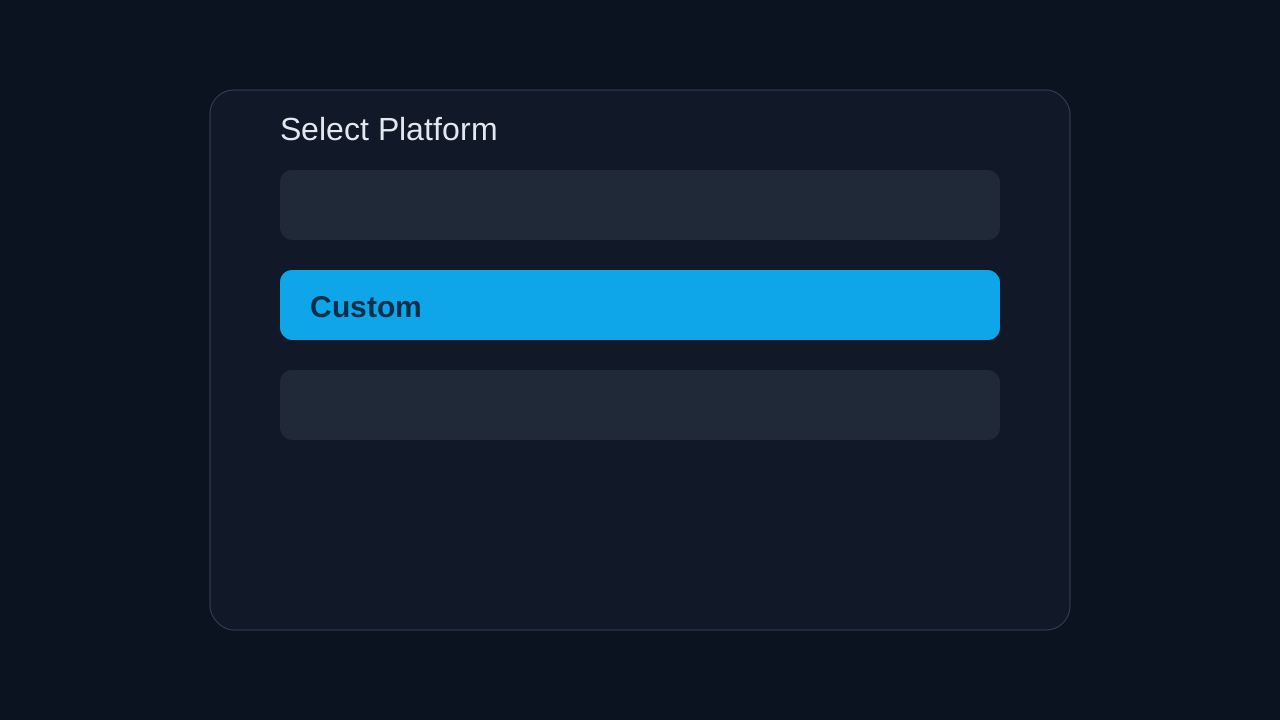
Step 2 — Create a stream and select Custom
Tap Create to add a new output. Pick Custom as the platform. That tells Moblin you are bringing your own ingest details instead of a one-click YouTube or Twitch profile.
Custom does not mean “insecure” — it means you control the server URL, stream identity, and protocol fields yourself. That is the correct path for host-provided SRTLA or SRT-style URLs.
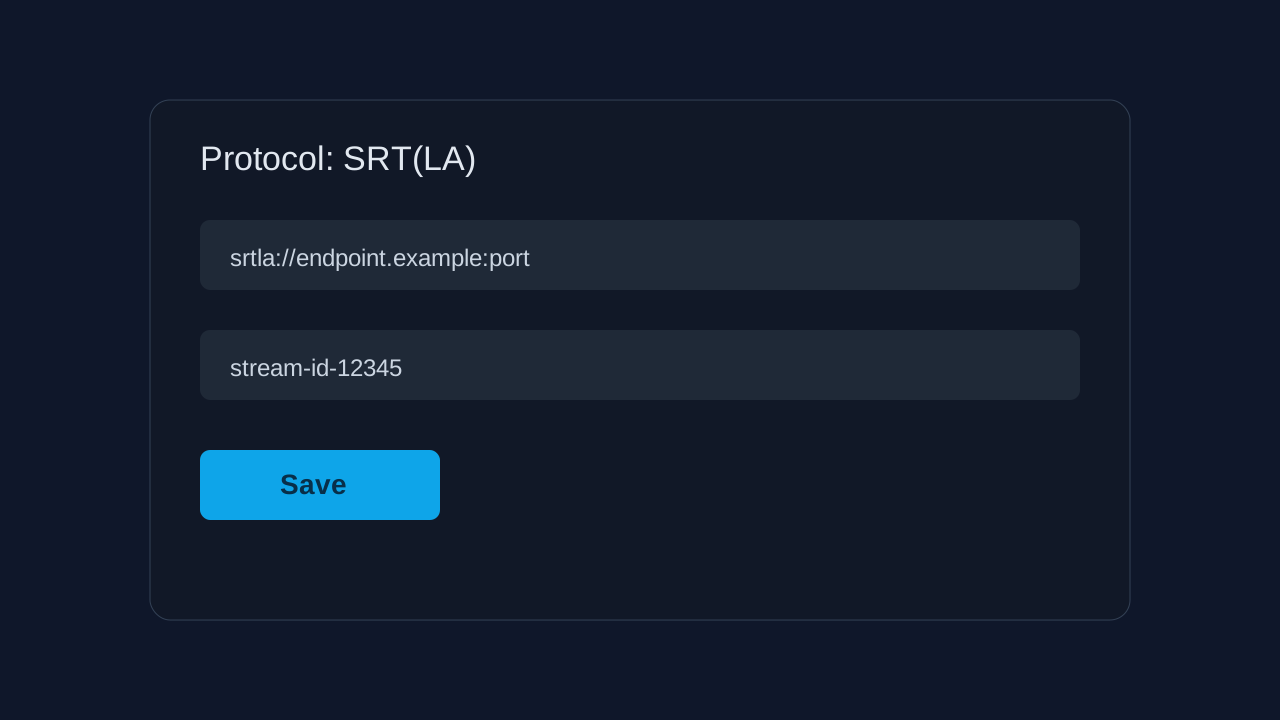
Step 3 — Set protocol to SRT(LA) and enter URL and stream ID
In the new stream, set the protocol to SRT(LA). Wording can vary slightly by app version, but the intent is the same: SRT-style ingest your host supports.
Paste the SRTLA URL from your provider into the field they describe — often a single string that includes host, port, and mode. In parallel, your host will give you a Stream ID (sometimes called a stream name or channel key) that their receiver pairs with the URL.
Get both values from the same place you manage the service, for example the host’s “My Services” or cloud endpoint page. If your UI splits “URL” and “Stream ID” into two fields, copy each line exactly; if the URL already embeds the stream name, only fill fields as your host’s doc specifies.
Triple-check: trailing spaces, smart quotes from PDFs, and partial copy-paste are the most common reasons a stream never connects. When in doubt, re-copy from the raw text in the control panel, not a screenshot or email.
- URL and stream ID are a pair. Changing one without the other usually means “connected but wrong channel” or “auth failed” on the far side.
- If your host rotates credentials, refresh the page before every big event and update Moblin the same day.
Step 4 — Match resolution, frame rate, and bitrate to the network
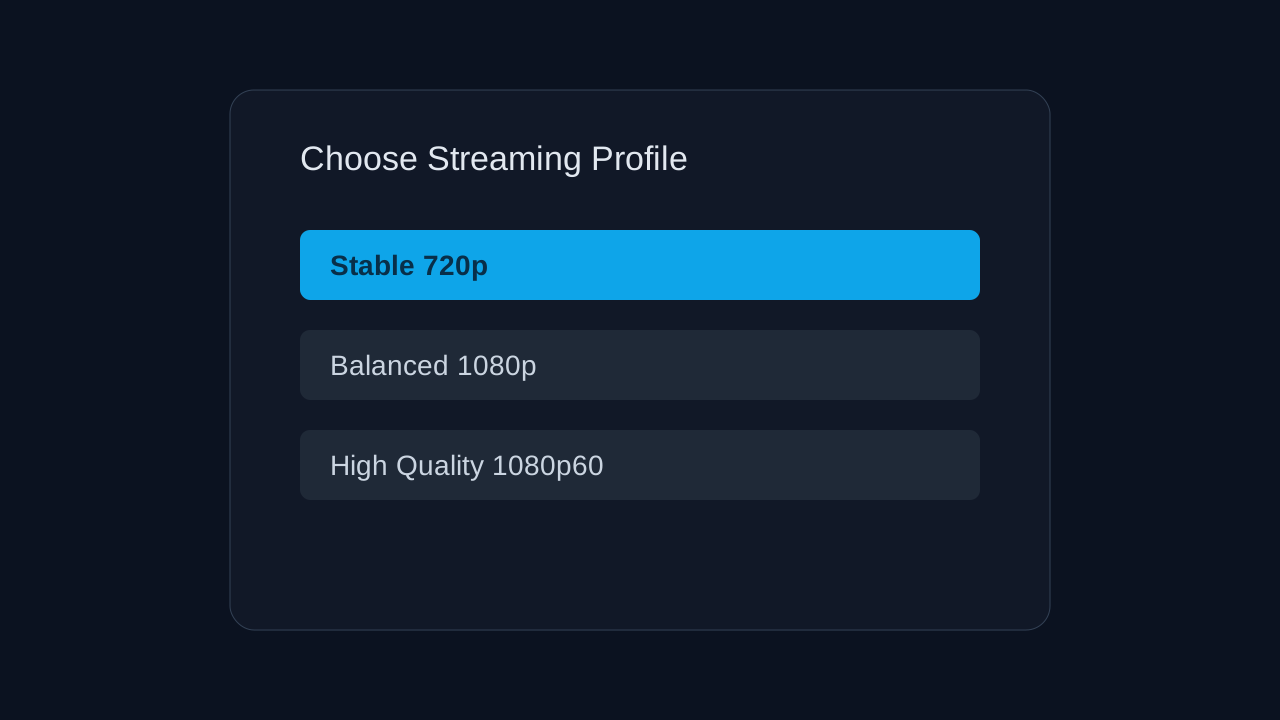
Select a streaming profile (resolution, frame rate, and target bitrate) that your uplink can sustain with headroom. IRL is not the place to max out 1080p60 unless you have proved it in the field on the same carrier in similar conditions.
A practical pattern: define two profiles in your head — a “safe” 720p30 or 720p60 and a “best effort” 1080p. Start the day on the safe one; only step up when minutes of stable bitrate prove you have room. Thermal throttling on phones can hit mid-stream, so the conservative default pays off on long walks.
Step 5 — Go live, watch the first 60 seconds, then commit
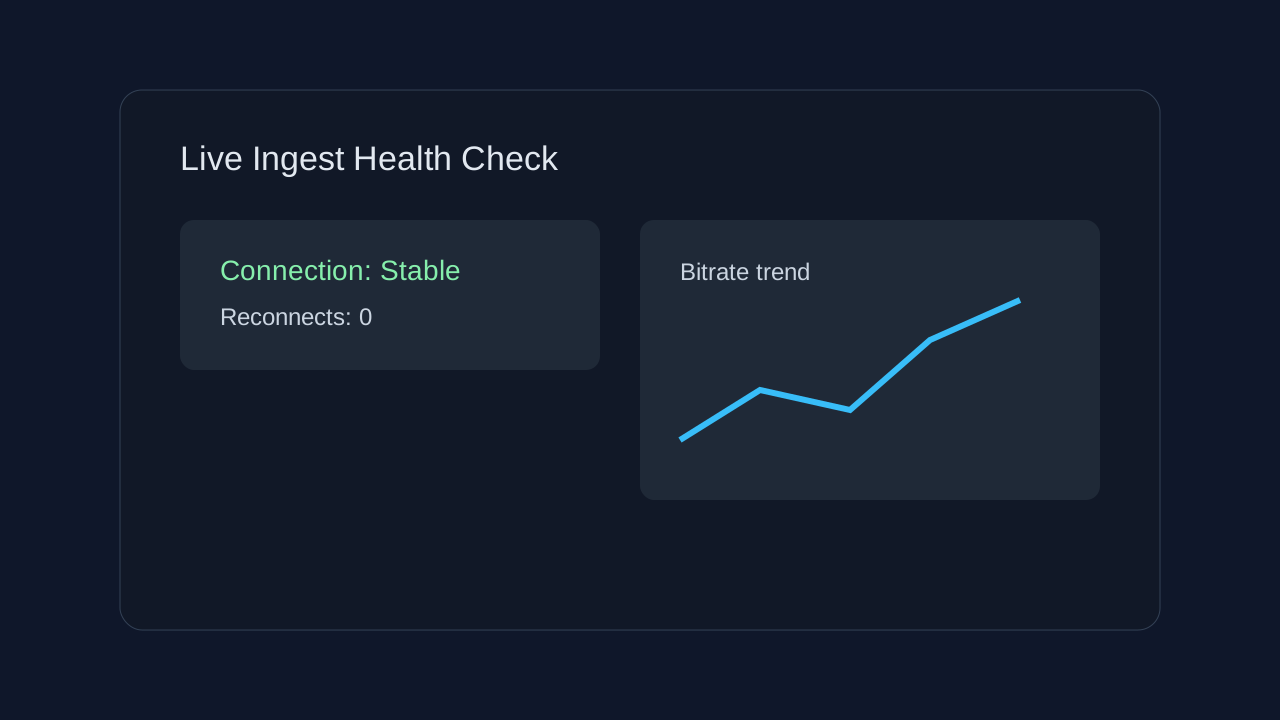
Start the broadcast from Moblin and open your host or platform dashboard. The first minute tells you if handshake, keying, and bandwidth line up. Look for a stable connection, expected bitrate, and no repeated reconnect spam.
If the preview looks clean but the public destination is wrong, the issue is often destination routing on the host, not the phone. If the preview stutters, reduce bitrate or resolution before the audience shows up. Small adjustments beat chasing perfection while live.
Pre-Flight Checklist
- Run a 5–10 minute private or unlisted test on the same network type you will use for the real stream.
- Confirm SRTLA URL and stream ID are current; re-paste if the host recently rotated the endpoint.
- Set bitrate under roughly 80% of what a speed test suggests for upload, not the advertised plan maximum.
- Disable battery saver throttling for the test if your OS can kill background networking aggressively.
- Pack a power bank; sustained encoding plus modems is murder on the battery over multi-hour IRL blocks.
Common Issues
“Connected” on the phone but no picture on the output
Stream ID and URL may be mismatched, or the host is routing to a different path. Re-copy both values from the panel, then confirm the host is not in maintenance. Some setups require a specific listener or caller mode — match the host’s Moblin example exactly.
Frequent drops or the bitrate collapses in waves
The profile is too heavy for the uplink, or the device is thermally throttling. Drop resolution, lower bitrate, and give the phone airflow. In dense venues, also expect RF contention; walking ten meters can change everything.
Work yesterday, fails today
Hosts update endpoints and keys. Re-open the service page, compare each character, and look for a published maintenance note. Stale saved credentials in Moblin are a top cause of “mystery” failures.
FAQ
The Moblin option is a fixed label, but the exact string format, ports, and whether stream ID is separate or embedded follow your host’s documentation. Always treat their current panel text as the source of truth, not a generic example from the web.
RTMP can work on stable upload. For walking and cell handoffs, a modern SRT-style path is often a better first try because it is aimed at lossy links. If your host only issues RTMP, use their spec; do not mix protocols randomly.
There is no one number. Start in the 2–4 Mbps range for 720p at conservative frame rates, then only increase if live tests show steady headroom. Congestion control beats fixed-bitrate bravado on IRL.
Providers use different names: stream key, channel ID, or path component. The field next to the SRT/SRTLA URL in the dashboard is the usual place. When unsure, open your host’s tutorial or support doc for the exact label they use in Moblin.
Want ingest built for real-world network chaos?
StreamIngest is built for resilient live workflows — bonding-friendly paths, automatic fallback, and less time babysitting a fragile RTMP string when the tower drops a bar.