How to Set Up a Fallback Video for Your Live Stream
A fallback video plays automatically when your stream disconnects, keeping your channel live on Twitch, YouTube, and Kick. Here is what to put on it and how to set it up in StreamIngest.
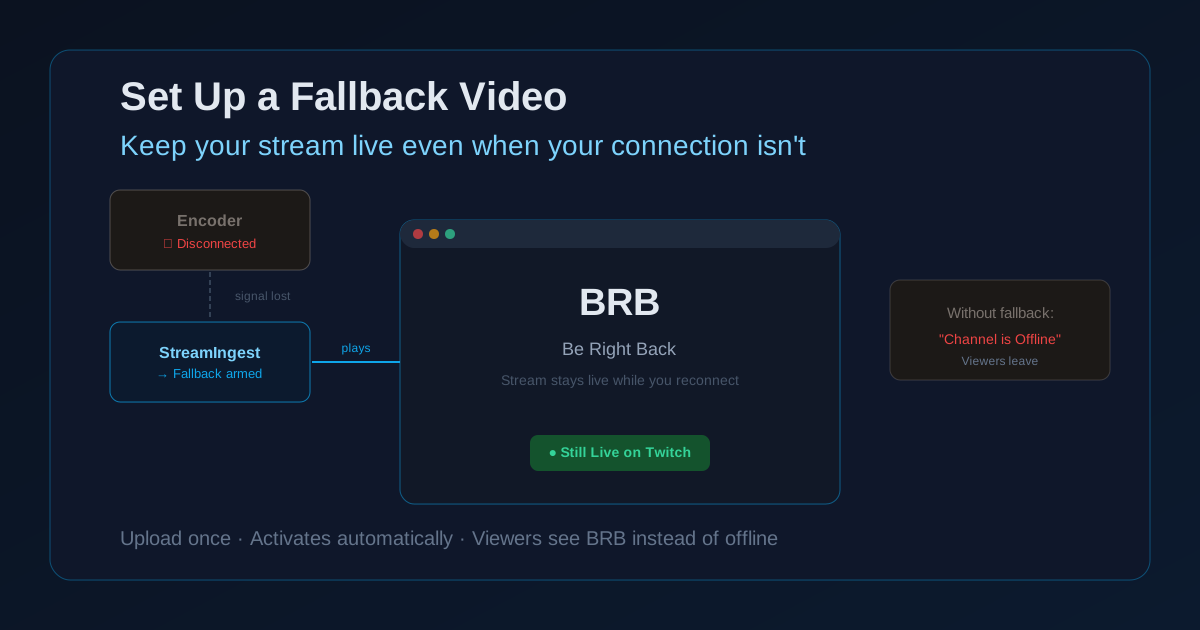
Every live streamer drops eventually. The question is not whether it will happen — it is what your viewers see when it does.
Without a fallback, they see the platform's default "Channel is offline" message and leave. With a StreamIngest fallback video, they see your custom BRB screen and stay — because the stream technically never went offline.
What a fallback video does (and what it does not)
A fallback video is a pre-recorded clip that StreamIngest plays automatically when your encoder disconnects. The moment your phone loses signal or your encoder stops sending data, StreamIngest switches to the fallback and continues delivering video to Twitch, YouTube, or Kick. From the platform's perspective, the ingest never stopped — only the video source changed.
When your encoder reconnects and the signal stabilizes, StreamIngest switches back to your live feed. The transition happens automatically — no manual intervention needed.
- The fallback keeps your stream technically "live" on the platform during a disconnect.
- It does not hide bitrate degradation before the drop — viewers will still see buffering as the signal collapses.
- It does not reconnect your encoder. That is your device's job. The fallback just buys time.
What to put on your fallback video
The goal is to communicate "I'll be right back" without alarming your audience or looking unprofessional. A simple looping graphic works best: your channel name or logo, a "Be Right Back" message, and optionally ambient music.
Keep it between 30 seconds and 2 minutes, designed to loop cleanly. A clip that loops every 60 seconds is far better than a 5-minute video with an awkward hard cut at the end. Avoid anything time-sensitive — no dates, no event names — so the fallback stays valid for years.
- Include your channel name so new viewers who land during the fallback know who you are.
- Avoid licensed music you do not own — a DMCA strike during your fallback is worse than the drop itself.
- A simple animated logo on a dark background made in Canva takes 10 minutes and works indefinitely.
How to upload your fallback in StreamIngest
In your StreamIngest dashboard, open Settings. Scroll to the Fallback Video section, click Upload, and select your file. StreamIngest accepts MP4 files and re-encodes to match your stream profile. Once uploaded, the fallback is armed — it activates automatically on every future disconnect with no further setup.
You can replace the fallback at any time from the same Settings screen. The new file takes effect immediately for subsequent streams.
- Upload once — it stays armed for every stream until you replace it.
- Check it is in place before major streams: Settings → Fallback Video.
- You can preview the uploaded file in the dashboard before going live.
Format and export settings
Export your fallback as H.264 MP4 at the same resolution as your stream (720p or 1080p) and a constant frame rate matching your stream (30fps or 60fps). A bitrate of 4–6 Mbps for 1080p produces a sharp file without unnecessary size. Keep the file under 500 MB.
Avoid variable frame rate exports from screen recorders — they can cause audio sync issues after re-encoding. If you are using DaVinci Resolve, Premiere, or CapCut, the default MP4 export settings produce a compatible file.
- H.264 / MP4 — works on every platform and re-encodes cleanly.
- Match the aspect ratio to your stream: 16:9 for landscape, 9:16 for vertical streams.
- Constant frame rate (CFR), not variable (VFR) — check your export settings if you use a screen recorder.
Pre-Flight Checklist
- Create a looping BRB graphic (30–90 seconds, no licensed music, no time-sensitive content).
- Export as H.264 MP4 at your stream resolution, constant frame rate, 4–6 Mbps.
- Upload to StreamIngest Settings → Fallback Video before your next stream.
- Test it: briefly disconnect your encoder and confirm the fallback plays on the platform.
- Update the fallback if it references a season, year, or event that has passed.
Common Issues
Fallback does not play when the encoder disconnects
Confirm the file uploaded successfully in Settings — an upload error can leave the slot empty without a visible warning. Also check that you are streaming to Twitch, YouTube, or Kick; some custom RTMP destinations do not handle seamless source switches.
Fallback looks noticeably lower quality than the live stream
Your fallback file resolution is likely lower than your stream profile. Upload a fallback at the same or higher resolution as your stream setting. StreamIngest will scale it to match, but a higher-resolution source produces a cleaner result.
There is a black frame between the live feed and the fallback
A brief black frame on the transition is normal — StreamIngest needs a few frames to detect the encoder disconnect and switch sources. The gap is shorter when the encoder sends a clean disconnect signal versus dropping off the network mid-packet.
FAQ
Yes. StreamIngest keeps delivering a continuous ingest signal to the platform, so the platform never registers a disconnect. The fallback works on any destination that receives an RTMP or SRT ingest from StreamIngest.
StreamIngest loops the uploaded clip automatically. A 60-second clip plays on repeat for as long as you are disconnected. Design the clip to loop seamlessly — match the first and last frame — for the cleanest result.
Yes. The fallback activates whenever StreamIngest stops receiving an encoder signal, regardless of why the signal stopped — accidental app close, network drop, or phone crash all trigger it the same way.
Without a fallback, StreamIngest has nothing to play when you disconnect. Your stream will go offline on the platform and viewers will see the default offline message. Upload even a simple solid-color BRB graphic — anything is better than showing "Channel is offline" mid-stream.
Never show "Channel is offline" again.
Fallback video is a standard StreamIngest feature — upload once and it plays automatically on every disconnect. Combine it with SRTLA bonding for a stream that stays live no matter what.