Connect Your Encoder to StreamIngest: OBS, Moblin, IRL Pro and Larix
Step-by-step guide to connect OBS Studio, Moblin, IRL Pro or Larix to StreamIngest: which address to use (SRT or SRTLA), the exact settings, the order to go live and how to fix a stream that does not connect.
- 1. Before you start
- 2. Step 1 — Find your encoder addresses
- 3. Step 2 — Use SRTLA on a phone, SRT on a computer
- 4. OBS Studio: two minutes
- 5. Moblin (iPhone): one tap
- 6. IRL Pro (Android) and Larix Broadcaster: one tap
- 7. Other encoders (vMix, BELABOX, hardware)
- 8. Step 3 — Go live in the right order
- 9. Do a 5-minute test before your first real stream
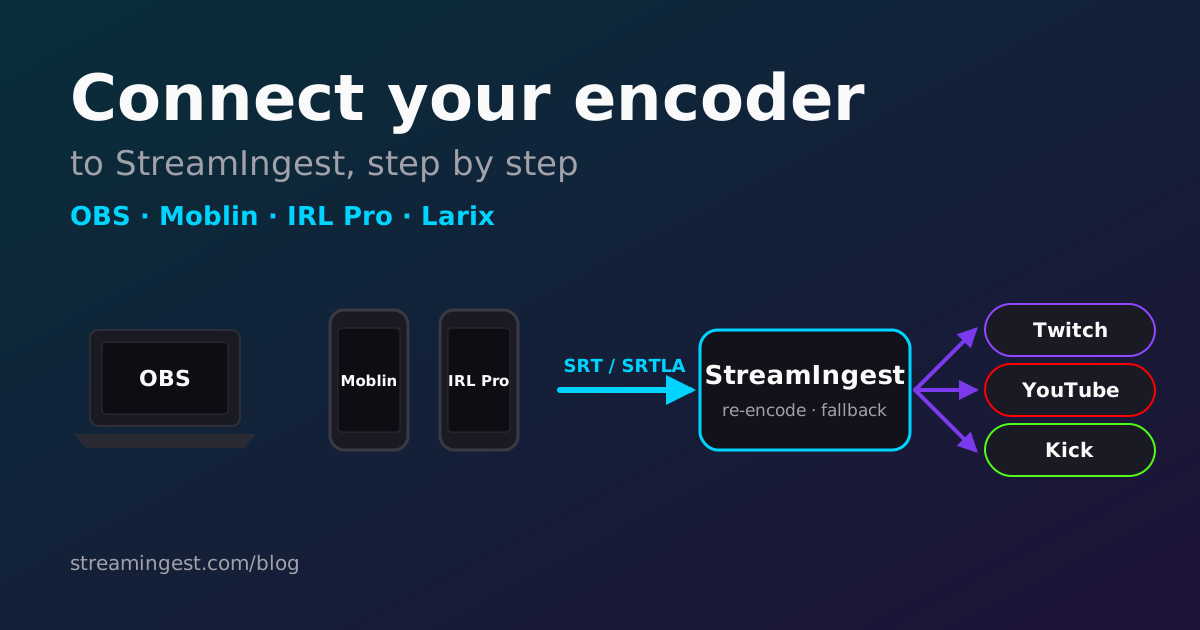
StreamIngest sits between your encoder and your platforms. Your encoder (OBS on a computer, or Moblin, IRL Pro or Larix on a phone) sends one stream to StreamIngest over SRT or SRTLA. StreamIngest re-encodes it, sends it to Twitch, YouTube or Kick, and plays your fallback image whenever your signal drops.
This guide takes you from a finished StreamIngest setup to your first live: where your encoder addresses are, which one to use, the exact settings for each app, and the order that avoids a black screen. It takes about five minutes.
Before you start
You need a StreamIngest account with the setup finished (destination and stream key saved) and an encoder installed. Every encoder below is free.
- Computer: OBS Studio 28 or newer (Windows, macOS or Linux).
- iPhone: Moblin (App Store).
- Android: IRL Pro (Google Play), or Larix Broadcaster on Android and iPhone.
- A stable upload of at least 5 Mbps for 1080p. Run a speed test on the network you will stream from.
Step 1 — Find your encoder addresses
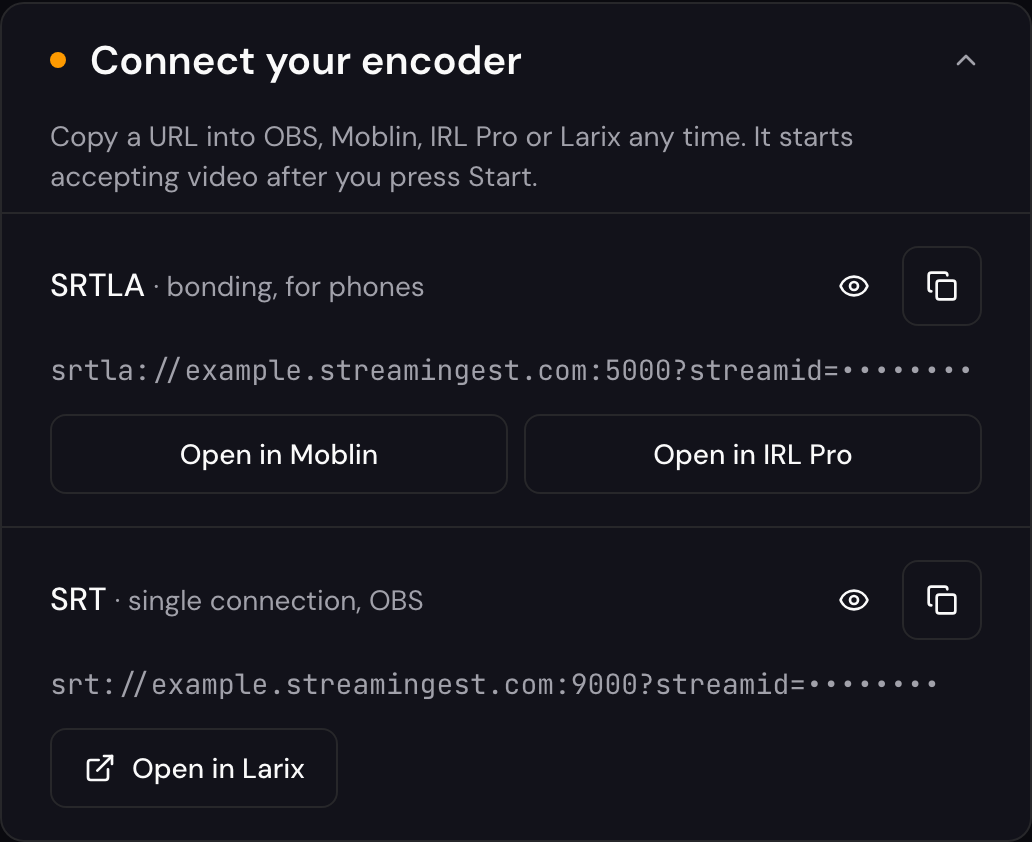
Open your StreamIngest dashboard. The card "Connect your encoder" has two addresses: SRTLA (bonding, for phones) and SRT (a single connection, for OBS). They stay the same between sessions, so you set up your encoder once.
The stream id at the end of each address is hidden by default. Use the eye icon to show it and the copy icon to copy the whole address. On a phone, the buttons Open in Moblin, Open in IRL Pro and Open in Larix fill in your app for you.
Tip: Treat these addresses like a password: anyone with them can send video to your channel. Never show them on stream.
Step 2 — Use SRTLA on a phone, SRT on a computer
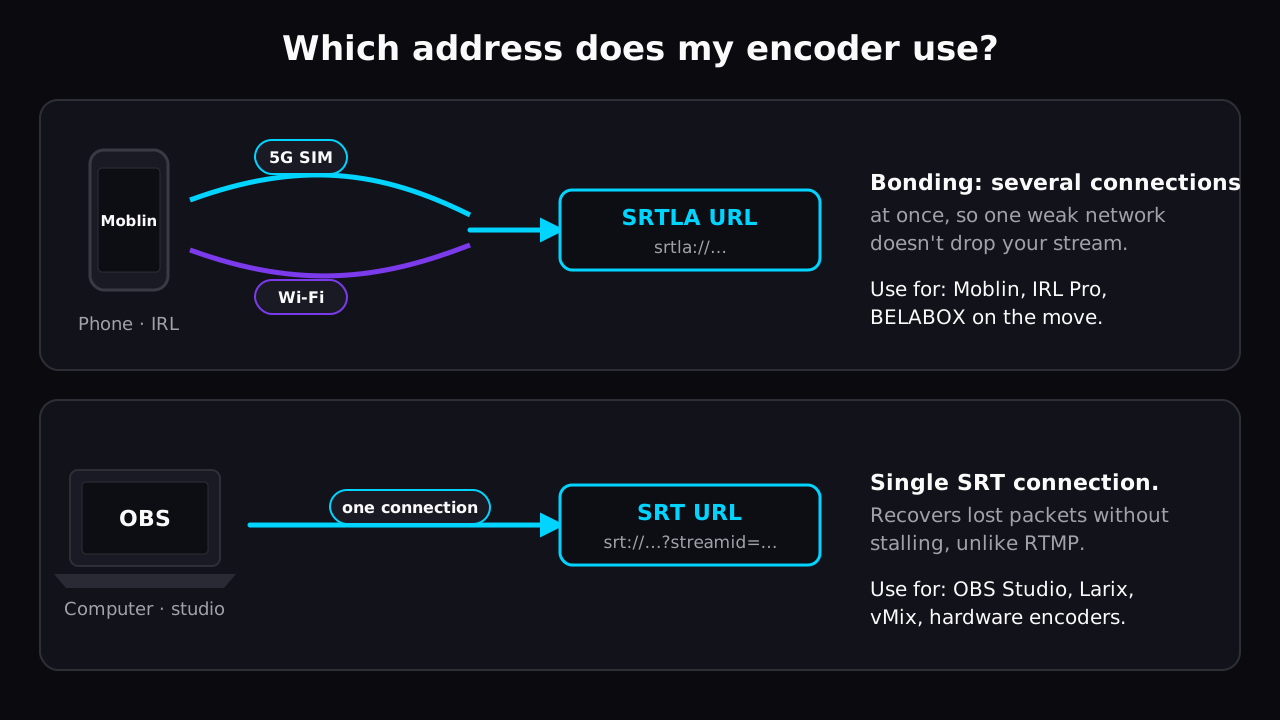
SRTLA bonds several connections (for example a 5G SIM and Wi-Fi) into one stream, so a weak network does not drop you. Use it with Moblin and IRL Pro, especially outdoors.
SRT is a single connection that recovers lost packets without stalling the way RTMP does. Use it with OBS, Larix, vMix and hardware encoders.
OBS Studio: two minutes
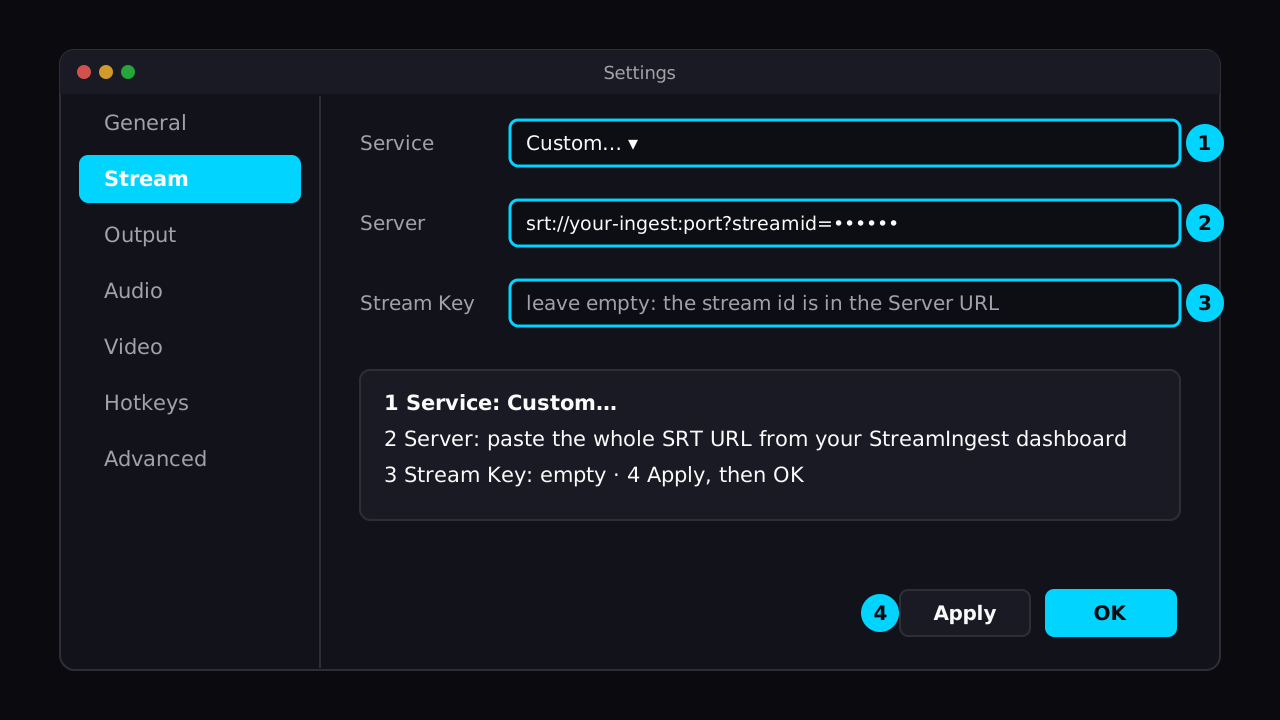
Copy the SRT address from your dashboard, then in OBS:
- Open Settings → Stream.
- Set Service to "Custom…".
- Paste the whole SRT address into Server (it starts with srt:// and ends with ?streamid=…).
- Leave Stream Key empty: the stream id is already part of the Server address.
- Click Apply.
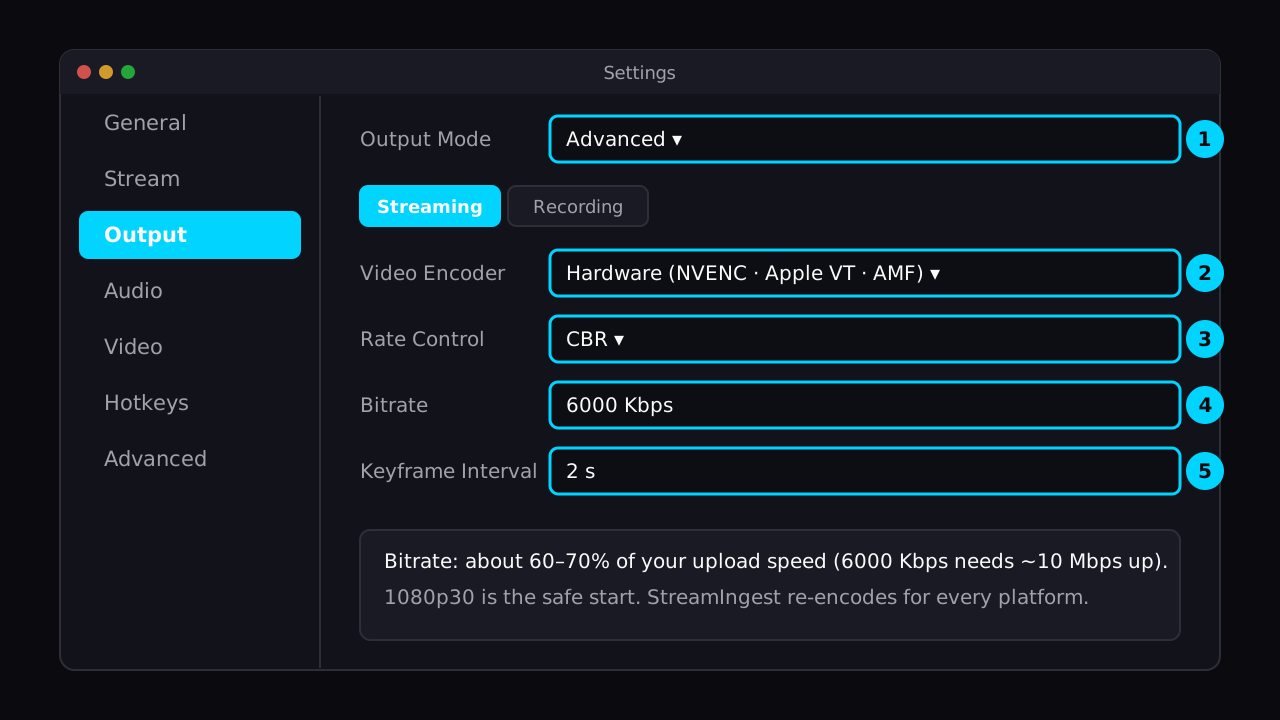
- Open Settings → Output, set Output Mode to Advanced and, on the Streaming tab, choose your hardware encoder (NVENC on Nvidia, Apple VT on Mac, AMF on AMD), Rate Control CBR, Bitrate 6000 Kbps and Keyframe Interval 2 s. Click OK.
Tip: Bitrate: about 60–70% of your upload speed. 6000 Kbps needs roughly 10 Mbps of upload; on a slower line use 4500 Kbps at 1080p30 or 720p. StreamIngest re-encodes for each platform, so you don't need to match Twitch or YouTube limits here.
Moblin (iPhone): one tap
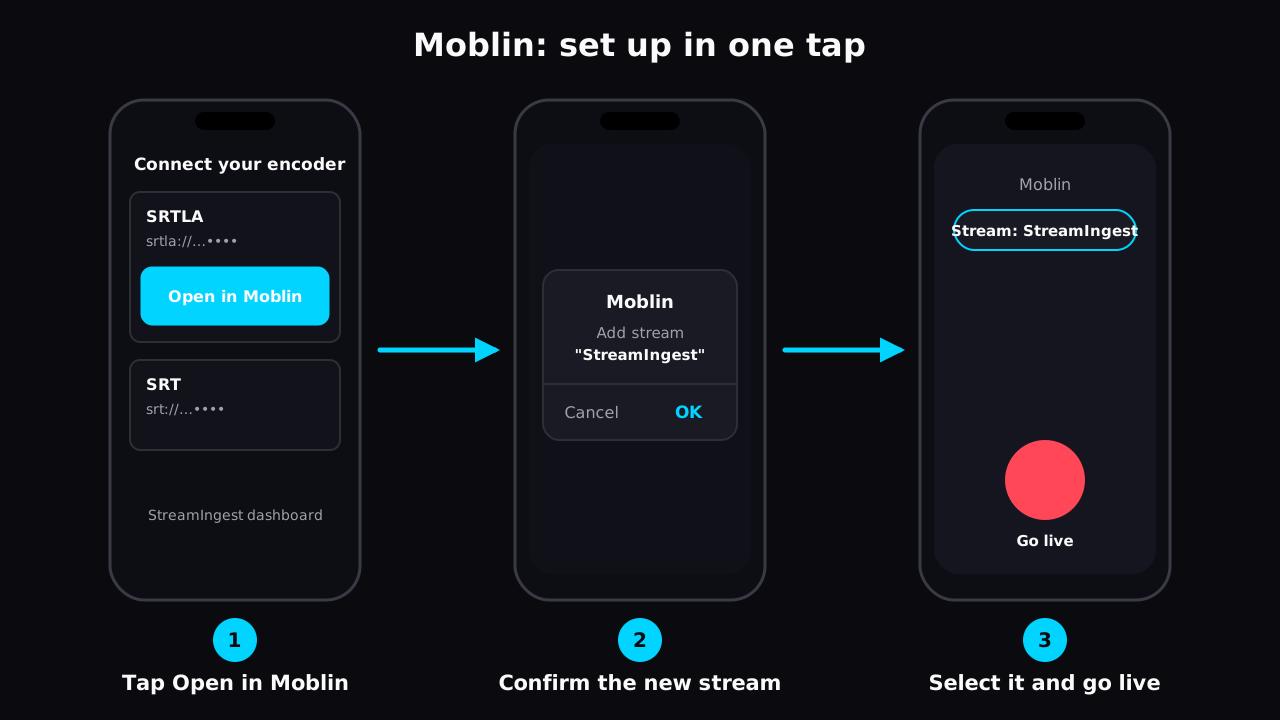
Open your StreamIngest dashboard on the iPhone that has Moblin installed and tap "Open in Moblin" under SRTLA. Moblin opens and adds a stream called StreamIngest with your address already filled in (H.265, which looks better at the same bitrate). Confirm it, select StreamIngest as the active stream and you are ready.
Setting it up by hand instead? Create a Custom stream in Moblin's Settings → Streams and paste the SRTLA address as the URL. Our Moblin guide covers every field and the best profile for IRL.
IRL Pro (Android) and Larix Broadcaster: one tap
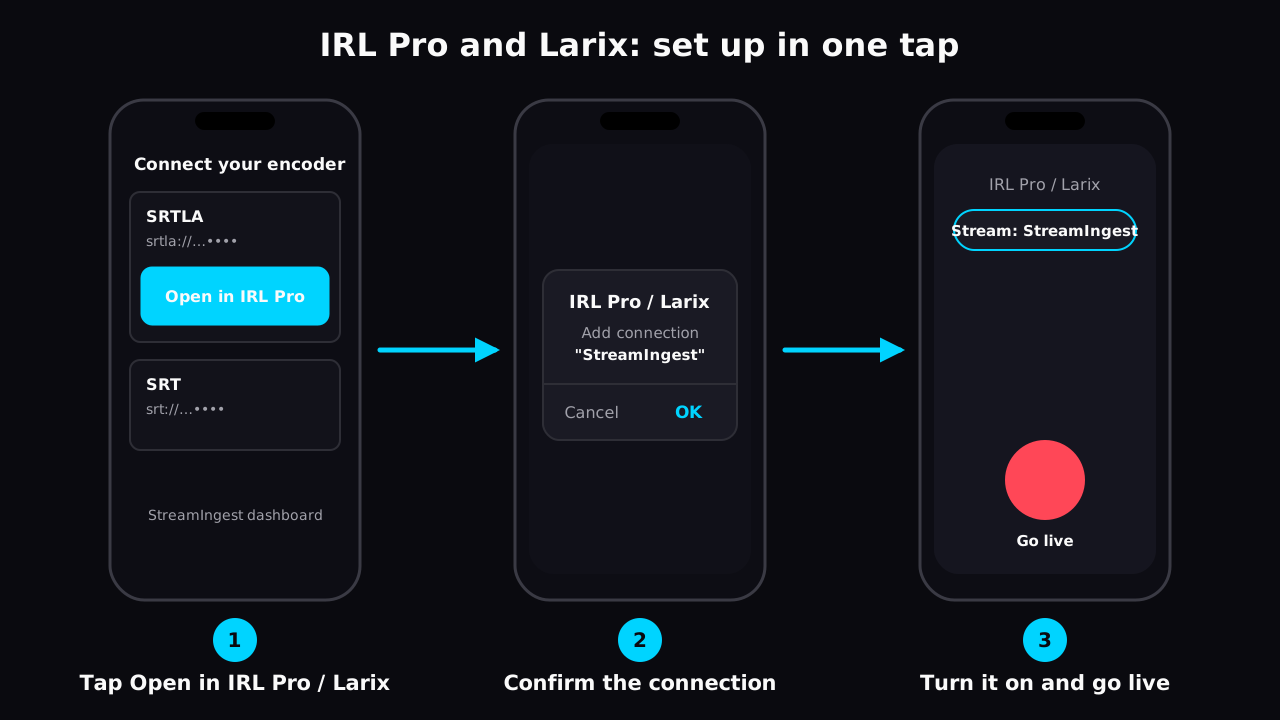
On the phone with the app installed, open your dashboard and tap "Open in IRL Pro" (under SRTLA) or "Open in Larix" (under SRT). The app adds a connection called StreamIngest, preset to 1080p30 at 3000 Kbps in HEVC. Confirm it, make sure it is the active connection and start streaming.
By hand: add a new SRT connection in caller mode, use the host and port from your address, and paste the value after streamid= into the Stream ID field. In IRL Pro choose SRTLA and the SRTLA address; in Larix choose SRT and the SRT address.
Other encoders (vMix, BELABOX, hardware)
Anything that sends SRT in caller mode works: use the host and port of your SRT address and the stream id after streamid=. Bonding devices that speak SRTLA (for example BELABOX) use the SRTLA address the same way. If your encoder only speaks RTMP, it can't connect to StreamIngest; OBS can take its output and send it on over SRT.
Step 3 — Go live in the right order
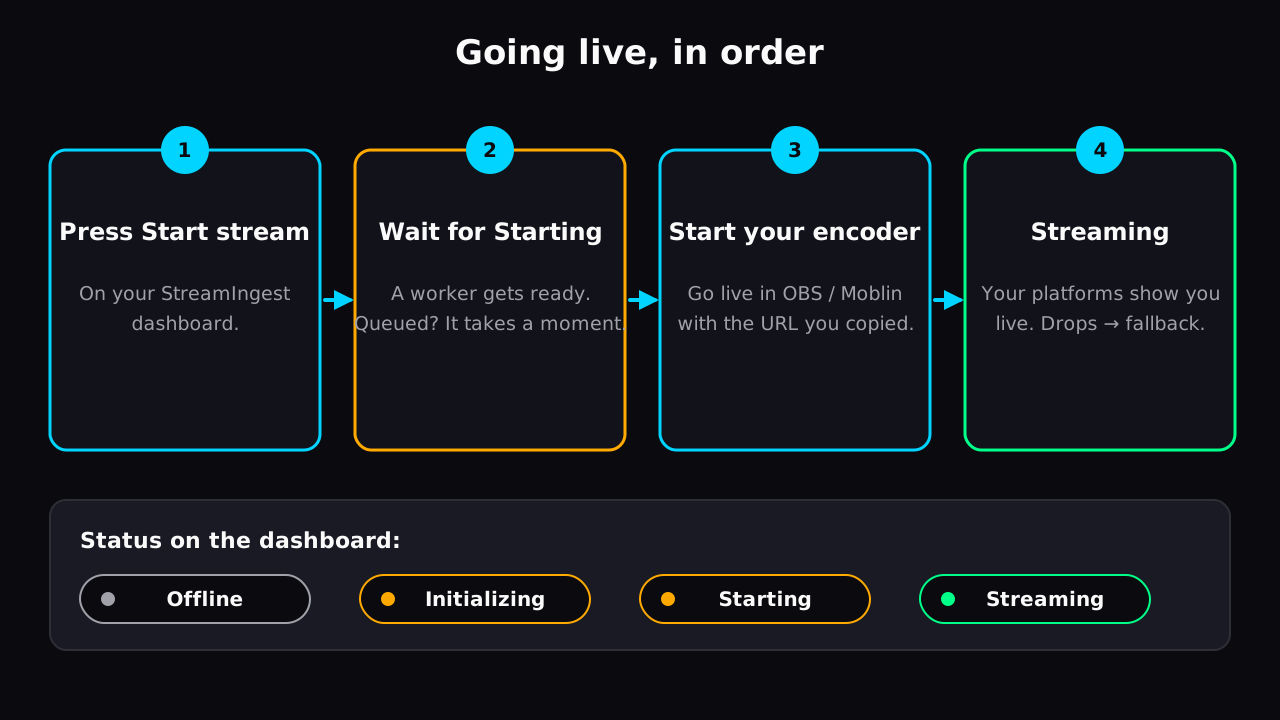
Your addresses start accepting video after you press Start stream on the dashboard. Press it first; the status goes from Offline to Initializing or Starting while a worker gets ready (if every worker is busy you are Queued for a moment and a new one is started). Then start streaming in your encoder.
When the status reads Streaming, your platform shows you live. If your signal drops, viewers see your fallback image instead of an offline screen, and StreamIngest switches back on its own when your signal returns.
Do a 5-minute test before your first real stream
Stream to your channel for five minutes before a planned live: on Twitch you can watch your own channel, on YouTube use an unlisted live. Walk around if you stream IRL, so you see the fallback and the switch back.
- The status reads Streaming and the dashboard preview moves.
- Your platform shows the stream with sound.
- OBS: Stats → dropped frames stay near zero. If not, lower the bitrate by 1000 Kbps.
- Phone: turn on airplane mode for a few seconds: viewers should see your fallback, then you again.
Pre-Flight Checklist
- Press Start stream on the dashboard before starting your encoder.
- Phones use the SRTLA address; OBS and Larix use the SRT address.
- In OBS: Service Custom…, the whole SRT address in Server, Stream Key empty.
- Bitrate at 60–70% of your upload speed, keyframe interval 2 s.
- A 5-minute test stream with sound before your first planned live.
Common Issues
The encoder keeps "connecting" or says the connection failed
Press Start stream on the dashboard first: the address only accepts video while your stream is starting or live. Then check that you pasted the whole address (srt:// or srtla://, the port and ?streamid=…) with no space at the end.
OBS shows "Failed to connect"
Clear the Stream Key field in OBS and paste the whole SRT address, ?streamid=… included, into Server. Everything OBS needs is in that one address.
The status stays on Starting or Queued
A worker is being prepared for you. This usually takes under a minute, a little longer when a new server has to start. Keep the page open; your encoder can already be running.
Viewers see the fallback image although the encoder is streaming
StreamIngest is not receiving enough video. Check that the encoder uses the right address for its type (SRTLA vs SRT) and lower the bitrate: on a phone 3000 Kbps HEVC is a safe start, on OBS 4500 Kbps.
FAQ
No. They stay the same between sessions, so you set up your encoder once. They only follow a different ingest server if you pick another region on the dashboard.
No: OBS sends to StreamIngest, not to your platform. Your platform's stream key lives in StreamIngest (Stream setup) and StreamIngest uses it to forward your stream.
One encoder feeds a stream at a time. PRO plans can add backup ingests so a second encoder takes over when the first one drops.
Both work. HEVC looks better at the same bitrate, which matters on mobile data, so the one-tap phone setups use it. In OBS, use whichever hardware encoder your computer has.
Ready to go live?
Open your dashboard, press Start stream and point your encoder at StreamIngest. New here? Set up your account in three quick steps.